
 USER GUIDE · EN
This chapter guides you through installing StereoTrader, starting it on a chart for the first time, and setting the key MetaTrader permissions. You will then know where to find your way around and which chapters explain each feature.
Installing StereoTrader#
First install MetaTrader 4 or MetaTrader 5. Then start the StereoTrader Installation Manager.
Starting the Installation Manager#
The manager initializes on its welcome page. Once it is ready, click >> to go to product selection.
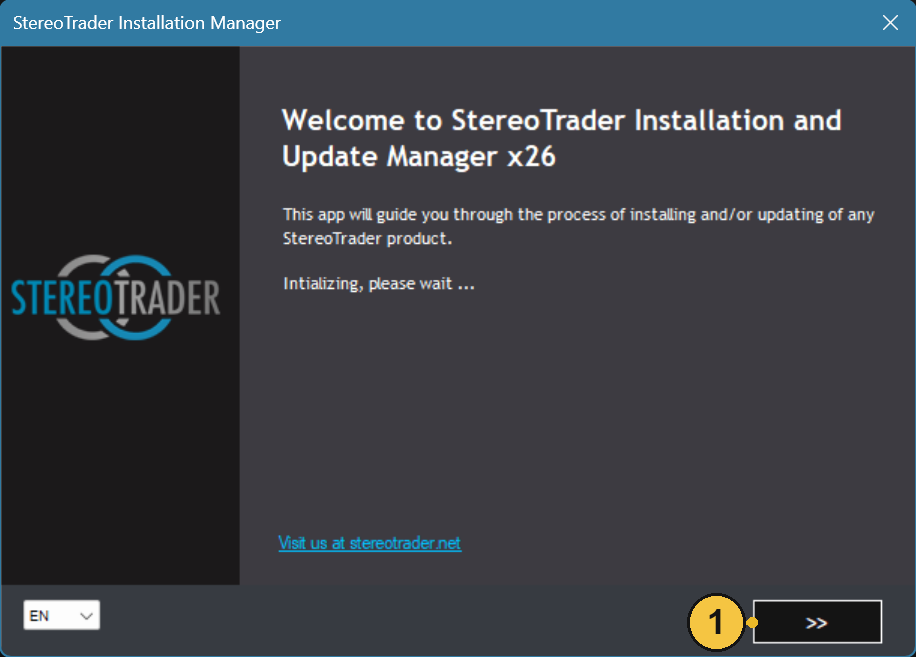
| No. | Label | Description |
|---|---|---|
| 1 | >> |
Goes to product selection after initialization. |
Selecting the platform and product#
Under Host platform, select the installed MetaTrader platform. Under Version, select the product version offered. Then select the product you want in the product tree. The detail view beside it corresponds to the current selection. The illustration shows StereoTrader MT Classic selected; the other entries are examples from this screenshot.
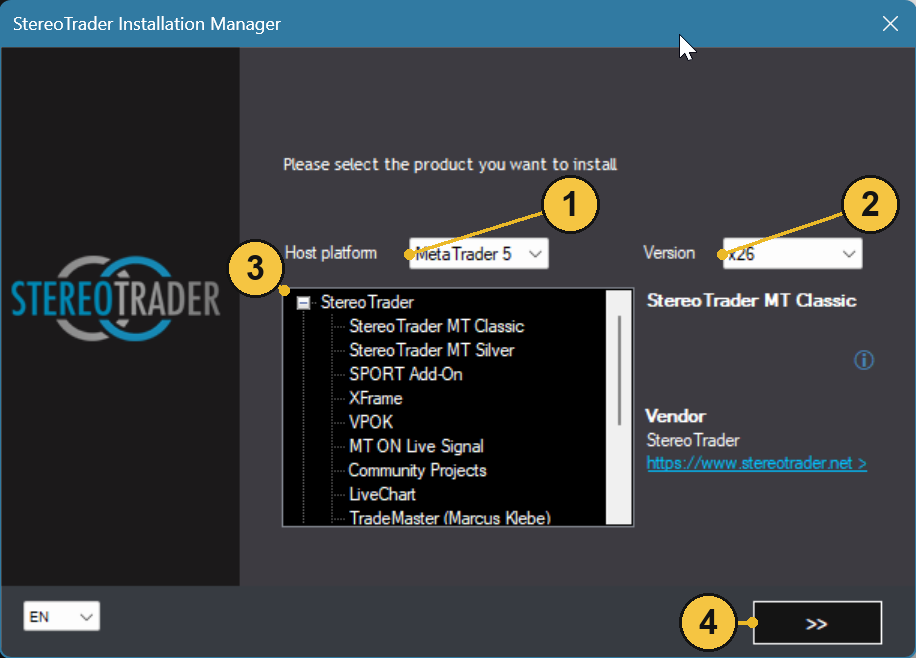
| No. | Label | Description |
|---|---|---|
| 1 | Host platform |
Select the MetaTrader platform here. |
| 2 | Version |
Select one of the versions offered by the manager. |
| 3 | Product tree | Select the StereoTrader product you want here. |
| 4 | >> |
Confirms the product selection and continues to the next step. |
Choosing an edition#
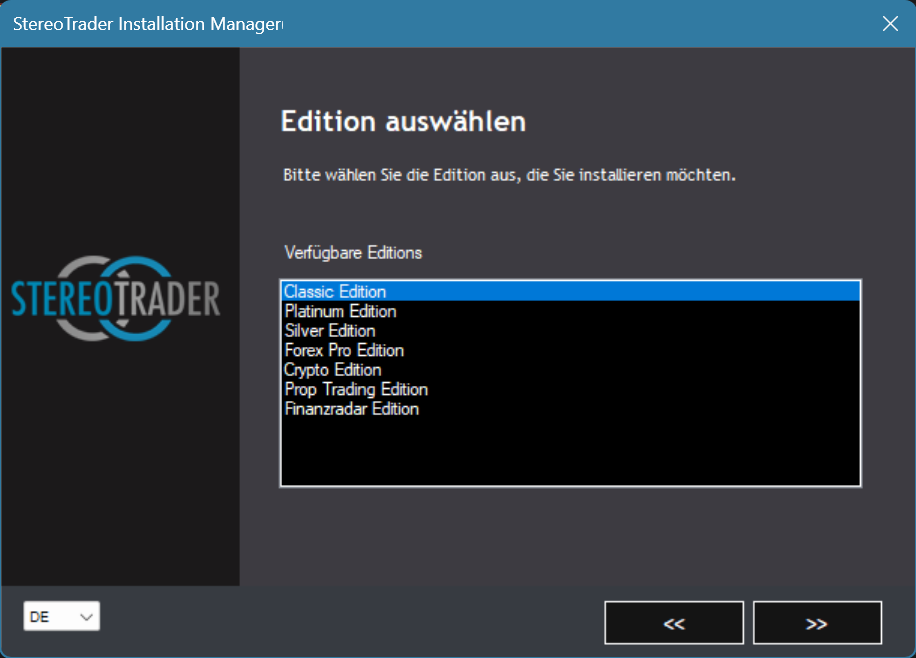
When the edition selection appears, select the edition you want and click >> to continue the installation.
Choosing installation targets#
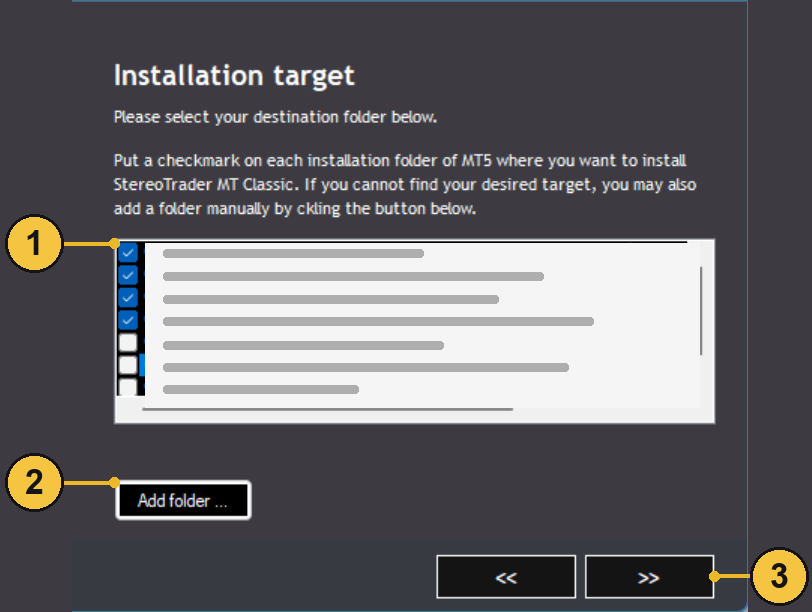
Select the MetaTrader terminal or terminals where you want to install StereoTrader. In the example, the manager offers MetaTrader 5 installations; the checkboxes indicate the selected targets. If the terminal you want is not listed, add it using Add folder .... Then click >> to continue with the selected targets.
| No. | Label | Description |
|---|---|---|
| 1 | Target list | Select the MetaTrader terminals where StereoTrader should be installed. |
| 2 | Add folder ... |
Adds an installation target that is not shown in the list. |
| 3 | >> |
Continues with the selected installation targets. |
Follow the remaining instructions in the Installation Manager. After the installation completes, open a new MetaTrader chart. StereoTrader will appear there automatically. If the interface does not appear, drag StereoTrader from the MetaTrader Navigator onto the chart.
After StereoTrader starts successfully, its trading panel appears on the chart. Chapter 02 explains the main areas of the interface.
Preparing MetaTrader for StereoTrader#
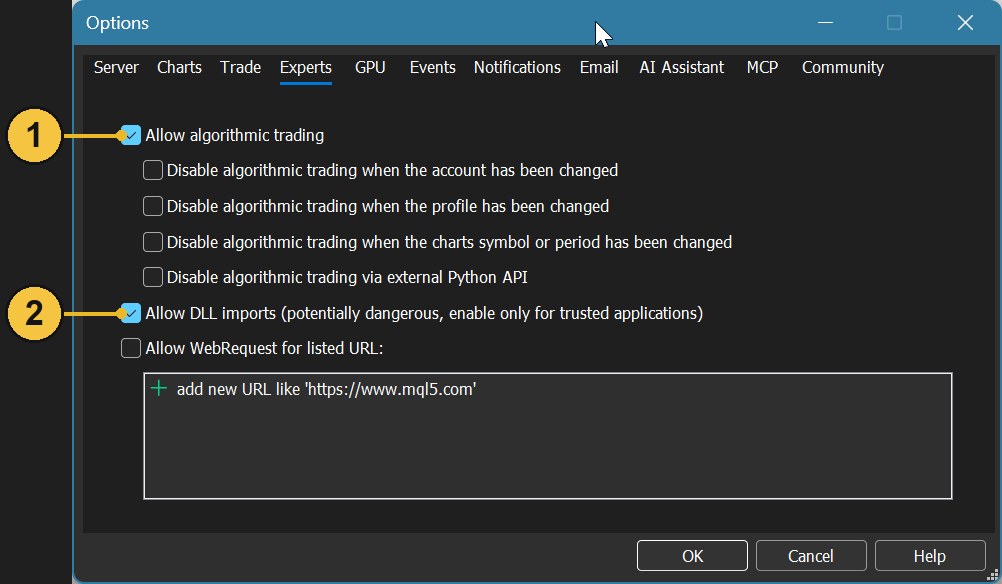
In MetaTrader, open Tools → Options and switch to the Experts tab. Enable Allow algorithmic trading and Allow DLL imports.
| No. | Label | Description |
|---|---|---|
| 1 | Allow algorithmic trading |
Allows MetaTrader to permit algorithmic trading by Expert Advisors. |
| 2 | Allow DLL imports |
Allows StereoTrader to make the required DLL calls. MetaTrader recommends granting this permission only to applications you trust. |
The three options below Allow algorithmic trading determine whether MetaTrader automatically disables algorithmic trading when you change accounts, profiles, or charts. The separate Python API setting controls whether algorithmic trading is disabled through that interface.
The MetaTrader Algo Trading switch in the toolbar must also be on for Expert Advisors to perform automated trading actions. It is different from StereoTrader's AUTOTRADING: that panel controls automated execution by SEAs. Chapter 11 explains the difference.
License and next steps#
A valid StereoTrader license is required to use the product. You can find license information and license management in the settings window under GLOBAL → LICENSES; Chapter 14 explains the related account settings.
Chapter 03 explains the trading models. In Chapter 04 and Chapter 05, you will learn how to open and close positions. Chapter 06 and Chapter 07 cover order handling and trade management.
Updating StereoTrader#
When the Neue Version verfügbar notification appears, open Product Updates and start the StereoTrader Installation Manager there.
- Close MetaTrader if the manager asks you to. If MetaTrader is still open, the manager will notify you.
- Follow the installation steps to install the update over the existing installation.
Your StereoTrader settings and licenses are retained during this update. You can find Product Updates in the global StereoTrader bar; Chapter 02 introduces the interface.
If StereoTrader does not appear on the chart after installation, see Troubleshooting for further checks.