


 USER GUIDE · EN
The Scalping Terminal is a compact bar on the chart. It brings together quick entry into a Market Order, the key information about a position, and buttons for closing positions and deleting Pending Orders. For detailed procedures, see the chapters on opening and managing positions and Pending Orders.
Open and close the Scalping Terminal#
Click the small triangle on the large StereoTrader panel to collapse it and display the Scalping Terminal. Click the left-pointing arrow in the compact bar to reopen the large panel.

| No. | Area | Description |
|---|---|---|
| 1 | Triangle on the large panel | Collapses the large panel and displays the Scalping Terminal. |
| 2 | Left arrow in the compact bar | Reopens the large panel. |
Overview#
The overview shows the Scalping Terminal at the top of the chart. The group markers help you quickly find the close and delete actions, position information, size selection, and price area.

| No. | Area | Description |
|---|---|---|
| 1 | Flat and colored X buttons |
On the left of the bar: Flat applies to positions, while the blue and red X buttons apply to Pending Orders. |
| 2 | Trade, Size, and Ticks |
Compactly show the trade result, position size, and result in ticks. |
| 3 | Quicksize and size field | Select or show the order size. |
| 4 | Price area and Scale |
Show the current price and provide access to chart scaling. |
The white X buttons on the position markers in the chart are for position management. They are separate from the colored X buttons in the bar; see Close a Position and Pending Orders for details.
Select the order size and open a Market Order#
Use the Quicksize buttons to select one of the offered sizes. To use a different size, enter it in the size field. The image shows example values of 1, 3, 2, and 5, as well as 1.00 in the size field. These are not fixed defaults; the available Quicksize buttons depend on the settings. For more information on configuration, see Chart-specific Settings and Visual Tools.
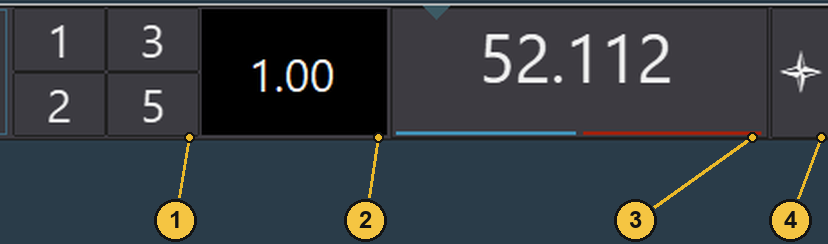
| No. | Label | Description |
|---|---|---|
| 1 | Quicksize buttons | Select one of the displayed order sizes; the numbers in the image are examples. |
| 2 | Size field | Shows the currently selected size and lets you enter a different size. |
| 3 | Price area | Shows the current price. Left-click the BUY price area to send a Market Order to buy; left-click the SELL price area to send a Market Order to sell. |
| 4 | Scale |
Adjusts the chart view's scale. Chart-specific Settings and Visual Tools explains other chart tools. |
Before clicking BUY or SELL, check the selected order size. Both price areas use this size. Open a Position describes the complete procedure for opening a position.
Close positions and delete Pending Orders#

| No. | Label | Description |
|---|---|---|
| 1 | Flat |
Closes the position or positions affected by the selected trading model. The small triangle opens its submenu. |
| 2 | Blue X |
Deletes Buy Pending Orders on the current chart. |
| 3 | Red X |
Deletes Sell Pending Orders on the current chart. |
| 4 | Trade, Size, Ticks |
Show the trade result, position size, and result in ticks. |
When a position is open, Trade shows its current result, Size shows the position size, and Ticks shows the result in ticks. The values in the recording are snapshots.
The precise scope of Flat depends on the selected trading model. Flat closes positions but leaves Pending Orders in place. The colored X buttons delete Pending Orders and do not close positions. Close a Position explains the model differences and other close actions; see Pending Orders for details on managing Pending Orders.
Further reading#
- Open a Position explains Market Orders and order size in more detail.
- Close a Position describes
Flatand other close actions. - Manage Trades explains how to manage open positions.
- Pending Orders covers placing, editing, and deleting Pending Orders.
- Chart-specific Settings and Visual Tools describes chart scaling and Quicksize settings.