


 USER GUIDE · EN
In the Settings Center, opened using the gear in the StereoTrader toolbar, you will find three areas. The tabs are ACCOUNT, BROKER, and GLOBAL; each applies at a different level:
| Area | Applies to | Typical contents |
|---|---|---|
GLOBAL |
General StereoTrader defaults for the environment | Interface, trading defaults, and themes |
BROKER |
Broker and server context for the selected account | Server time zone, execution method, and risk calculation |
ACCOUNT |
Monitoring and control of the selected account | Account values, statistics, and Account Control |
A GLOBAL default is not a chart-specific setting. For an individual chart, use the values under Current Settings described in Chapter 13. The account-wide trading lock, Trade Control, is a separate area described in Chapter 15.
GLOBAL — general StereoTrader defaults#
The GLOBAL group contains the sections GENERAL, LICENSES, TERMINAL, TRADING, and LAYOUT.
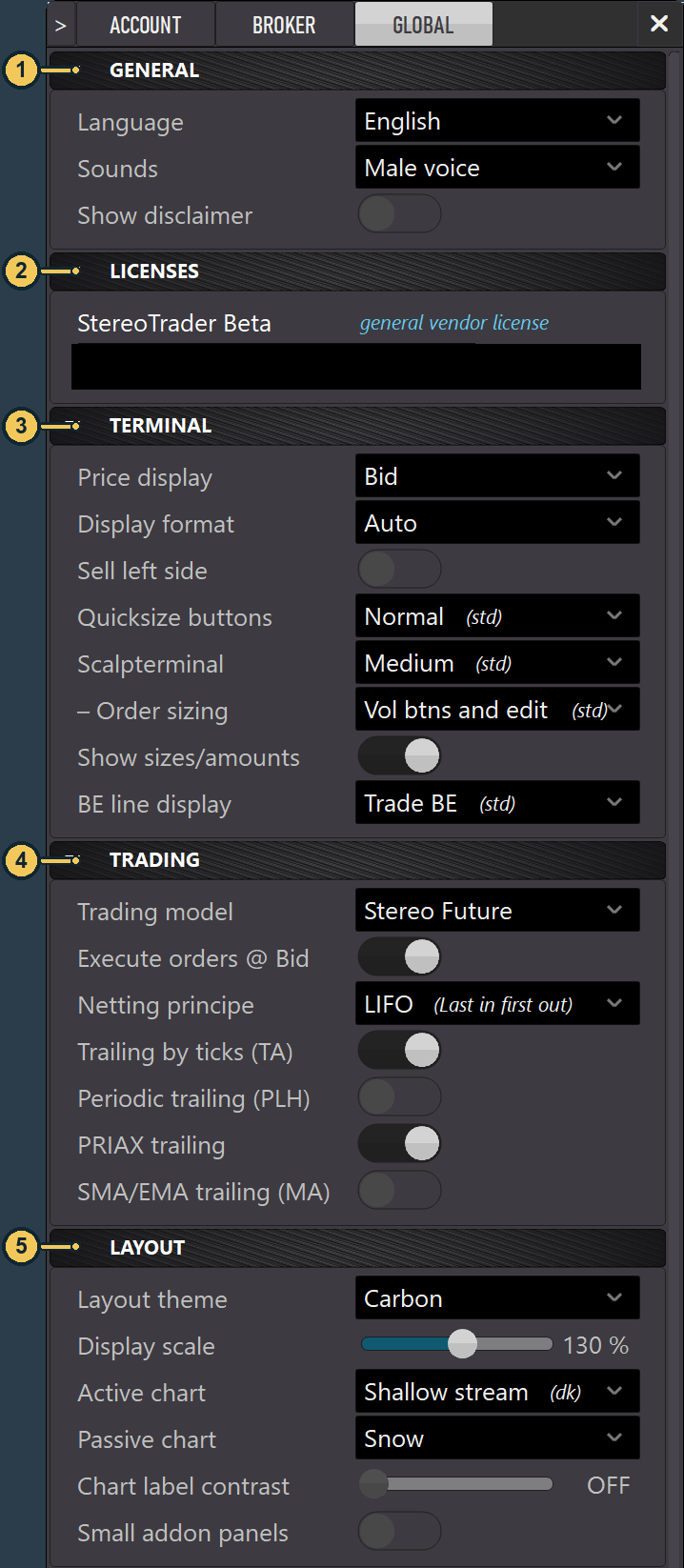
| No. | Area | Description |
|---|---|---|
| 1 | GENERAL |
Language, sounds, and disclaimer. |
| 2 | LICENSES |
Manages the displayed product, add-on, and SEA licenses. License values are obscured in the image. |
| 3 | TERMINAL |
Display and selection of position sizes in the trading panel. |
| 4 | TRADING |
Global defaults for the trading model, order execution, and available Trail methods. |
| 5 | LAYOUT |
Interface scaling, themes, and display of chart labels and add-on panels. |
GENERAL and LICENSES#
Languageselects the language of the StereoTrader interface.Soundsselects the sound or voice variant for notifications.Show disclaimerturns the disclaimer shown at startup on or off.- Under
LICENSES, manage the StereoTrader, add-on, and SEA licenses listed in the Settings Center. Do not share license values; you do not need to disclose them to use this chapter.
TERMINAL#
The options under TERMINAL determine how the trading panel displays prices and position sizes.
Price displayselectsBidorAskas the reference for the large price display.Display formatdetermines whether prices are shown automatically or with a fixed number of decimal places.Sell left sideswaps the positions of the BUY and SELL sides in the trading panel.Quicksize buttonsdetermines how quick sizes are offered. The selection shown in the image isNormal (std); other variants depend on the available configuration.Scalpterminalsets the display size of the Scalping Terminal. Chapter 08 explains how to use the panel.Order sizingdetermines the input method for order size. The image showsVol btns and edit (std)selected.Show sizes/amountsturns the additional size and amount information on or off.BE line displayselects how the Break Even line is displayed.
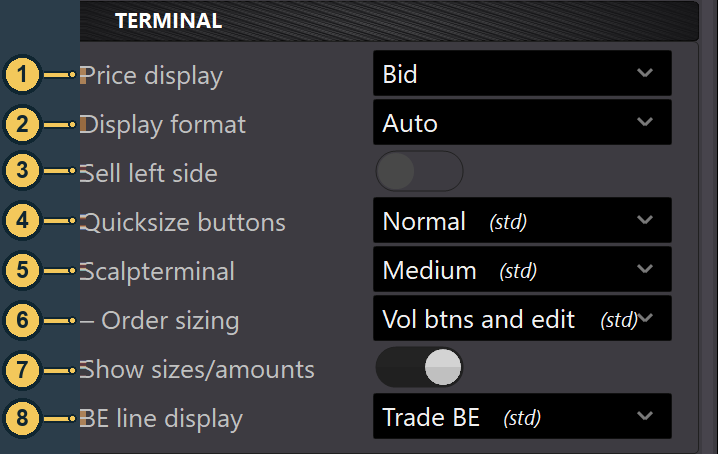
| No. | Label | Description |
|---|---|---|
| 1 | Price display |
Top dropdown row in the group. |
| 2 | Display format |
Dropdown directly below it. |
| 3 | Sell left side |
Switch below Display format. |
| 4 | Quicksize buttons |
Dropdown below Sell left side. |
| 5 | Scalpterminal |
Selection field below Quicksize buttons. |
| 6 | Order sizing |
Indented row below Scalpterminal. |
| 7 | Show sizes/amounts |
Switch below the selection fields. |
| 8 | BE line display |
Selection field at the end of the group. |
TRADING#
TRADING sets global defaults and determines which Trail methods are offered in the relevant selection fields.
Trading modelsets the global default model. The image showsStereo Futureselected. Set chart-specific overrides inCurrent Settingsas described in Chapter 13; Chapter 03 explains the models.Execute orders @ Bidenables execution at the Bid price instead of the Ask price.Netting principleselectsFIFO(First in, first out) orLIFO(Last in, first out). The exact effect depends on the trading model and account type; see Chapter 03.Trailing by ticks (TA),Periodic trailing (PLH),PRIAX trailing, andSMA/EMA trailing (MA)determine which of these Trail methods are available to select. Their operation and effects are explained in Chapter 06.
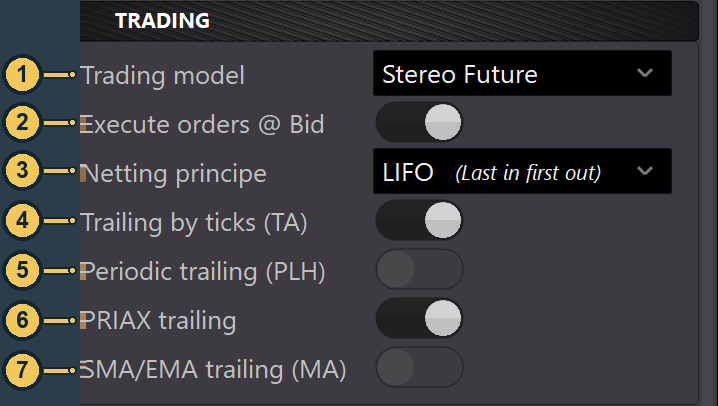
| No. | Label | Description |
|---|---|---|
| 1 | Trading model |
Top selection field in the group. |
| 2 | Execute orders @ Bid |
Switch directly below it. |
| 3 | Netting principle |
Selection field below Execute orders @ Bid. |
| 4 | Trailing by ticks (TA) |
First Trail switch in the group. |
| 5 | Periodic trailing (PLH) |
Switch below Trailing by ticks (TA). |
| 6 | PRIAX trailing |
Switch below Periodic trailing (PLH). |
| 7 | SMA/EMA trailing (MA) |
Last Trail switch in the group. |
LAYOUT#
Layout themeselects the interface theme. The image showsCarbonselected.Display scaleenlarges or reduces the StereoTrader interface; the image shows130 %. This is not theScalesetting in the Scalping Terminal.Active chartandPassive chartselect separate themes for charts in these two states. They do not change the chart state itself; Chapter 13 explains what each state means.Chart label contrastdetermines the opacity of the chart label.OFFhides it; higher values make it more visible.Small addon panelsturns the more compact display of add-on panels on or off.
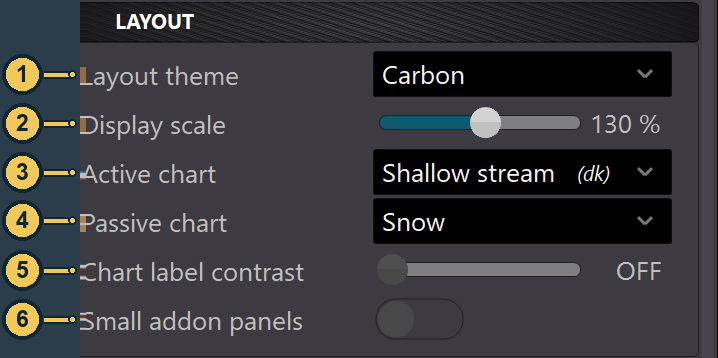
| No. | Label | Description |
|---|---|---|
| 1 | Layout theme |
Top selection field in the group. |
| 2 | Display scale |
Scaling control below Layout theme. |
| 3 | Active chart |
Theme selection below Display scale. |
| 4 | Passive chart |
Separate theme selection below Active chart. |
| 5 | Chart label contrast |
Control below the theme selections. |
| 6 | Small addon panels |
Switch at the end of the group. |
Apply changes in GLOBAL#
GLOBAL values are not all applied in the same way. Some changes take effect immediately. If Apply changes appears for a change, click it; StereoTrader automatically reinitializes the affected interface elements if needed. The button is not a general save step for every GLOBAL field.
BROKER — broker and server settings#
BROKER applies to the broker/server context of the selected account, not to an individual chart. This area has no Apply changes button.
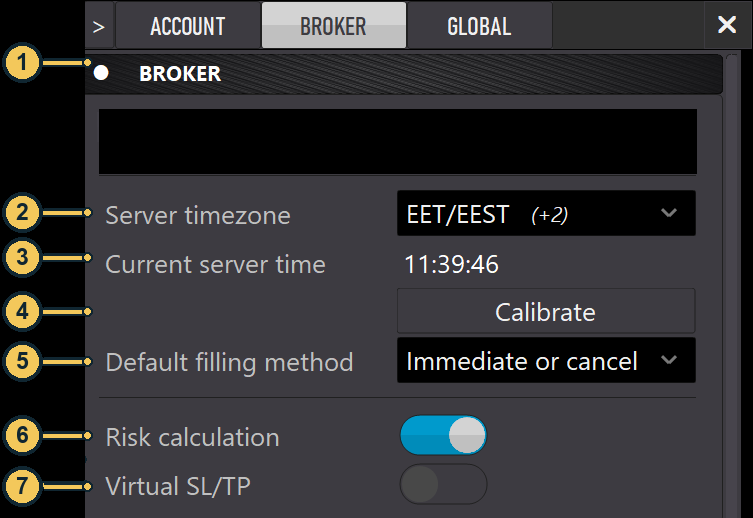
| No. | Label | Description |
|---|---|---|
| 1 | BROKER |
Opens the broker and server area for the selected account. |
| 2 | Server timezone |
Time zone of the broker or trading server. |
| 3 | Current server time |
Shows the current time in the server time zone. |
| 4 | Calibrate |
Detects the server time zone and enters it in the time-zone field after successful calibration. |
| 5 | Default filling method |
Selects an execution method supported by the broker. FOK executes an order in full or rejects it; IOC executes the immediately available part and cancels the remainder. The image shows Immediate or cancel selected. For Invalid Filling Type, see Chapter 18. |
| 6 | Risk calculation |
When enabled, broker and symbol parameters are included in risk-based calculations. |
| 7 | Virtual SL/TP |
When enabled, StereoTrader manages Stop Loss and Take Profit locally instead of placing normal broker-side SL/TP orders. |
When Virtual SL/TP is enabled, MetaTrader and StereoTrader must be running for the locally managed rules to execute. If both programs stop, these rules are not placed with the broker as normal SL/TP orders. For normal use, it is therefore recommended to leave Virtual SL/TP disabled.
ACCOUNT — monitor and control the selected account#
The account list shows accounts on which StereoTrader is running. Select an account to display its account card, metrics, statistics, and Account Control settings. The values in the images are examples from a demo account.
Account card, Flat, and Daily Balance Statistic#
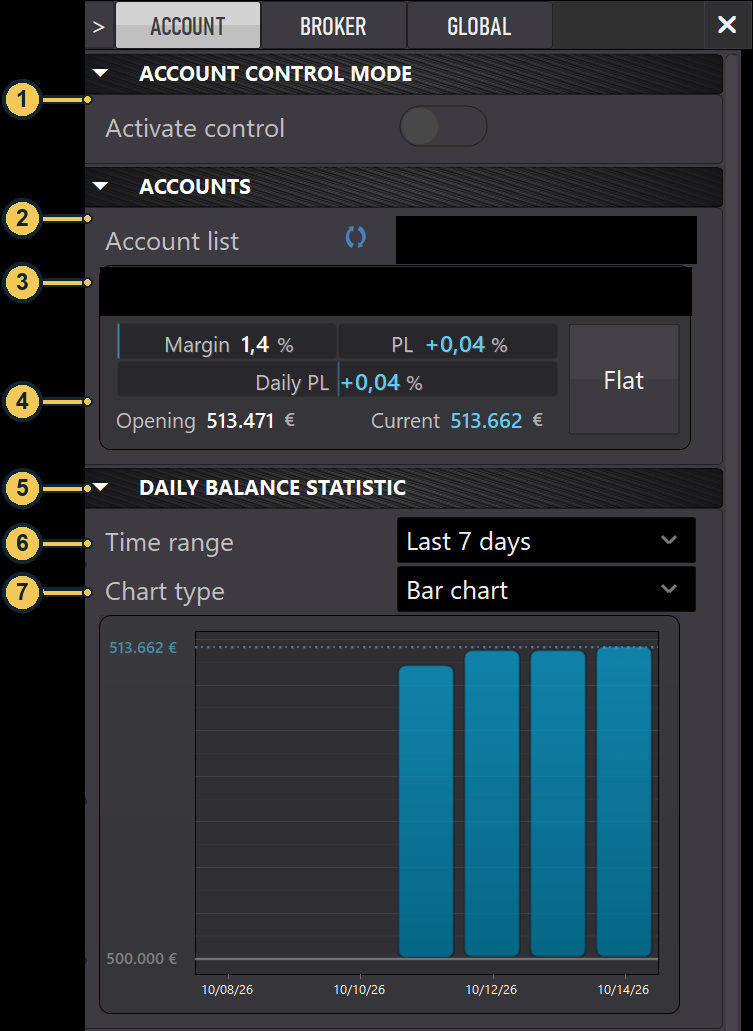
| No. | Area | Description |
|---|---|---|
| 1 | ACCOUNT CONTROL MODE |
Shows the Account Control area; Activate control is off in the image. |
| 2 | ACCOUNTS |
Contains Account list for selecting an account. A refresh icon is visible alongside it. |
| 3 | Account header (anonymized) | Identifies the selected account and broker; the values are obscured in the image. |
| 4 | Account metrics | Margin, PL, and Daily PL are the field names; their values are shown as percentages. Opening and Current show equity values. These metrics are displays, not input fields. |
| 5 | DAILY BALANCE STATISTIC |
Shows the account balance over time. |
| 6 | Time range |
Selects the period for the statistics; Last 7 days is shown. |
| 7 | Chart type |
Selects the display type; Bar chart is shown. |
Flat on the account card closes open positions for the selected account. This applies to the entire account, not only the chart where you opened the Settings Center. Chapter 05 explains Flat in the trading panel for the current chart.
The DAILY BALANCE STATISTIC visualizes the account balance for the selected period. It shows account history and does not guarantee future performance or returns.
Account Control: disabled, Prop trading, or Manual control#
Activate control turns Account Control for the selected account on or off. When it is on, use Mode to select Prop trading or Manual control. The rules apply to the account. Click Apply changes to apply ACCOUNT changes.
- Disabled: The Prop trading and Manual control rules are off. The account card and Daily Balance Statistic remain available independently.
Prop trading: Provides limits and a target that you can adapt to the requirements of a challenge or prop provider.Manual control: Provides account-wide minimum and maximum equity limits and time-based control.
Account Control is different from Trade Control: Account Control monitors the selected time and account limits. Trade Control in Chapter 15, by contrast, provides the account-wide Close all & lock trading lock.
Prop trading#
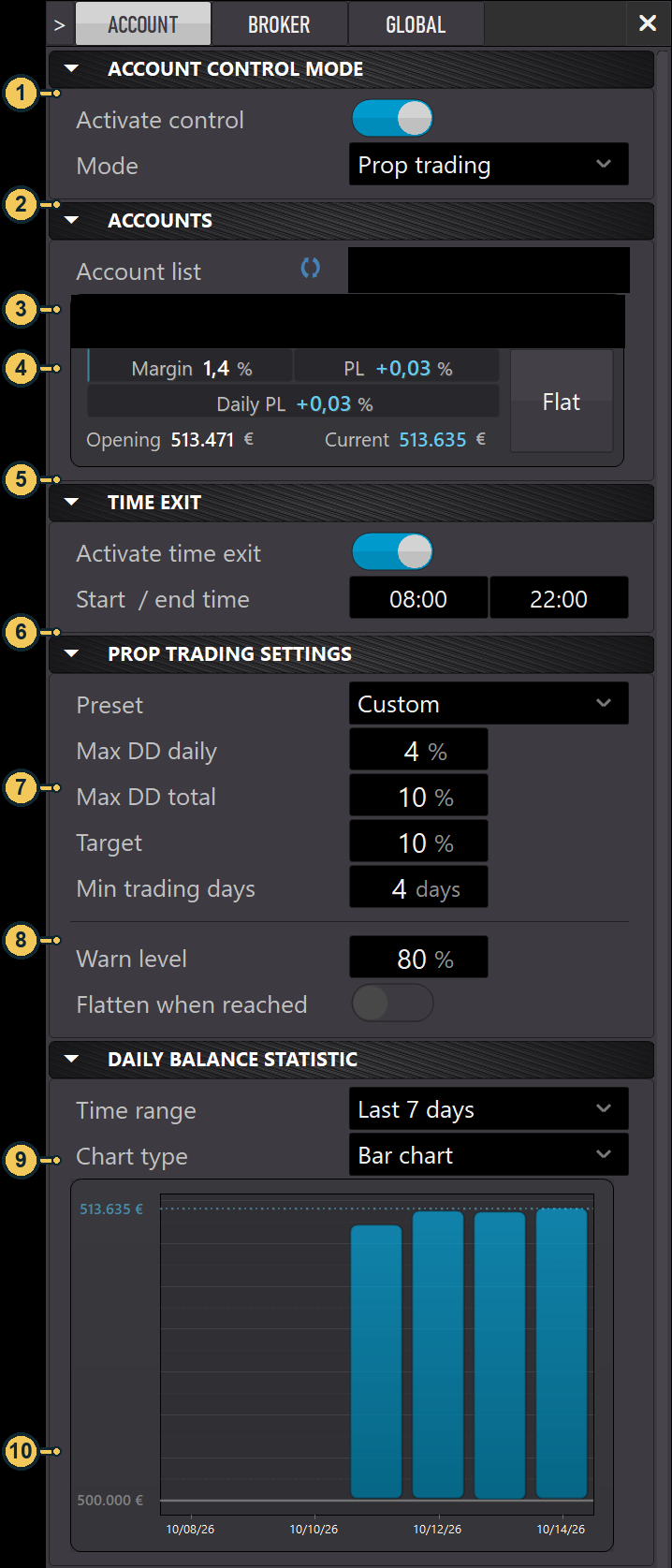
| No. | Area | Description |
|---|---|---|
| 1 | ACCOUNT CONTROL MODE |
Shows that Account Control is active and displays the selected mode. |
| 2 | ACCOUNTS |
Selects the account for the displayed values and rules. |
| 3 | Account header (anonymized) | Account and broker details are obscured. |
| 4 | Account metrics | Shows Margin, PL, Daily PL, and Opening and Current equity values. |
| 5 | TIME EXIT |
Group for the time-based Account Control rule. |
| 6 | PROP TRADING SETTINGS |
Group with the preset and Prop trading limits. |
| 7 | Limits and target | Shows Max DD daily, Max DD total, Target, and Min trading days. |
| 8 | Warning threshold and flatten | Shows Warn level and Flatten when reached. |
| 9 | Chart type |
Selects the display type for the account statistics. |
| 10 | Statistics chart | Shows the account balance over the selected period. |
Prop trading fields in detail
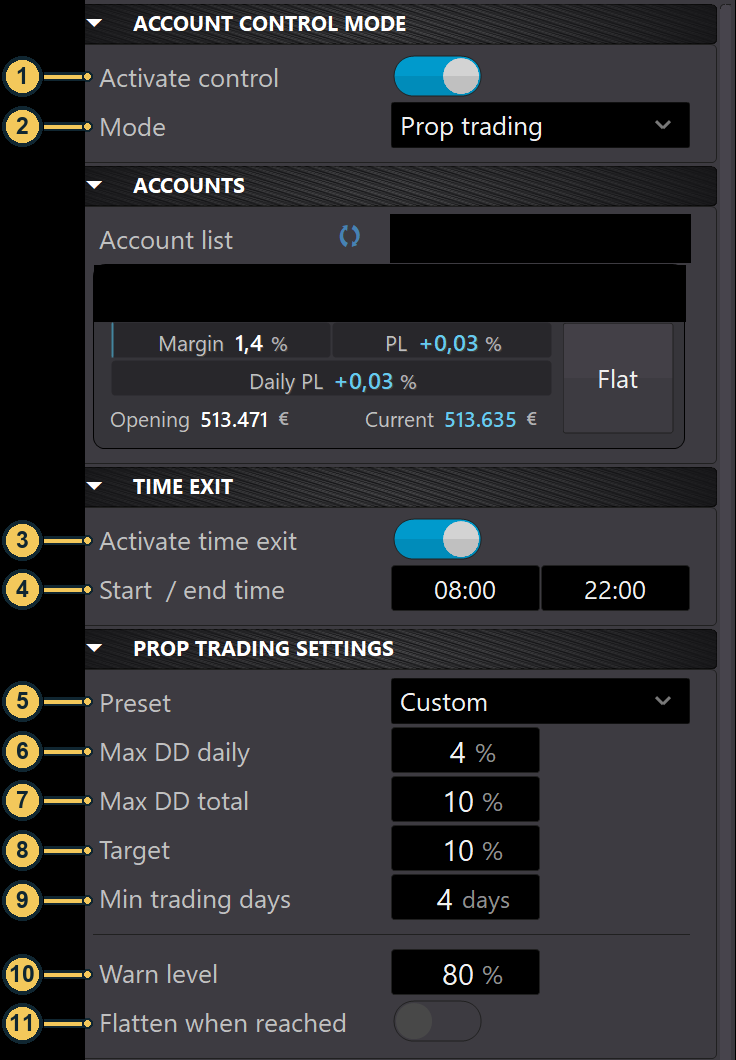
| No. | Label | Description |
|---|---|---|
| 1 | Activate control |
Turns Account Control for the selected account on or off. |
| 2 | Mode |
Selects Prop trading or Manual control; this view has Prop trading selected. |
| 3 | Activate time exit |
Turns the account time rule on or off. |
| 4 | Start / end time |
Sets the start and end of the time window. Its account-wide effect is explained below. |
| 5 | Preset |
Selects a preset. The image shows Custom, which lets you set the values individually. |
| 6 | Max DD daily |
Sets the daily drawdown limit. |
| 7 | Max DD total |
Sets the total drawdown limit. |
| 8 | Target |
Sets the target for the selected preset; it does not guarantee a result. |
| 9 | Min trading days |
Sets the minimum required number of trading days. |
| 10 | Warn level |
Sets the warning threshold relative to the monitored Prop trading limit. |
| 11 | Flatten when reached |
Determines whether all open positions for the selected account are closed and all its Pending Orders deleted when the warning threshold is reached or exceeded. |
Max DD daily sets the drawdown limit for one day; Max DD total sets the total drawdown limit. Target specifies the preset target; Min trading days sets the minimum required number of trading days. Warn level determines when the warning threshold is reached relative to the monitored Prop trading limit. For example, a threshold of 80% is reached at 80% of that limit.
Warning: If
Flatten when reachedis enabled, the action applies to the entire selected trading account. When the warning threshold is reached or exceeded, all open positions for this account may be closed and its existing Pending Orders deleted. Carefully check the selected account, its configured limits, and the warning threshold before enabling this option.
Manual control and EQUITY EXIT#
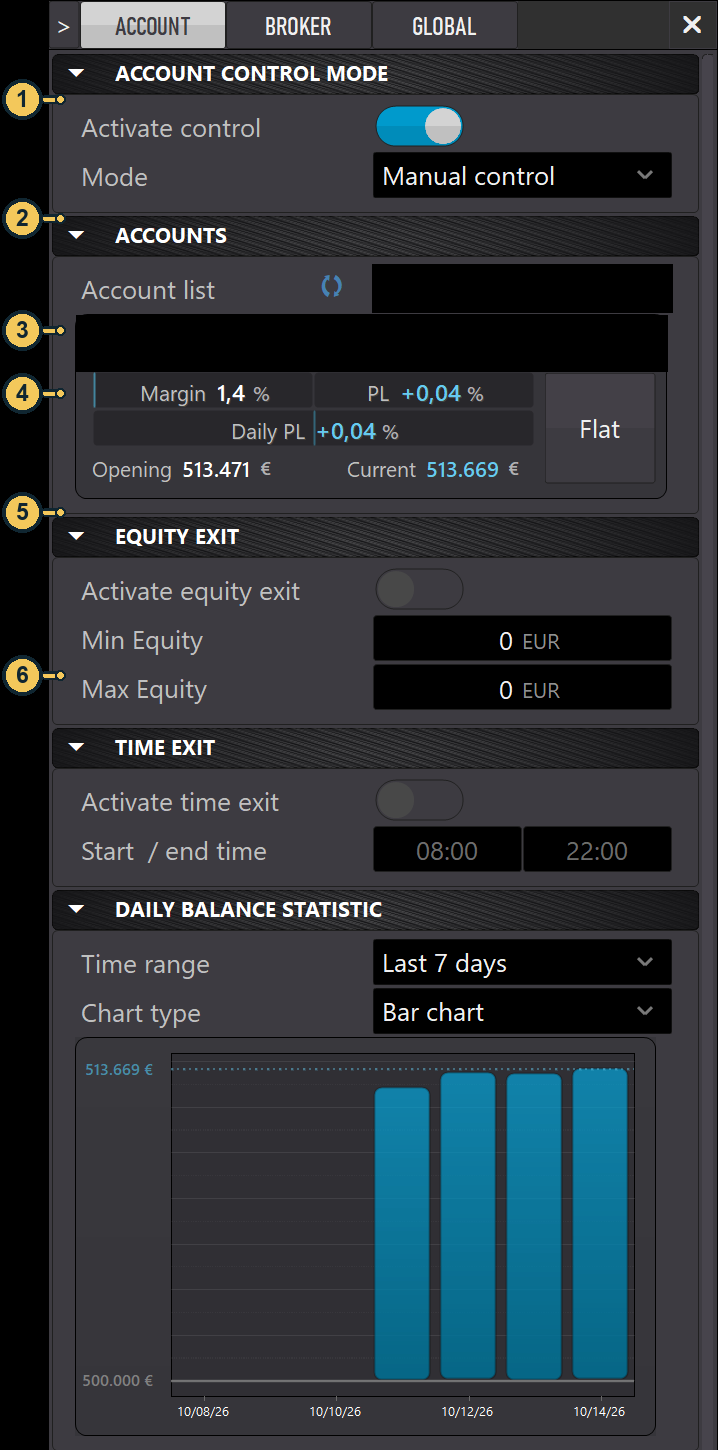
| No. | Area | Description |
|---|---|---|
| 1 | ACCOUNT CONTROL MODE |
Shows that Account Control is active and Manual control is selected. |
| 2 | ACCOUNTS |
Selects the account. |
| 3 | Account header (anonymized) | Account and broker details are obscured. |
| 4 | Account metrics | Shows Margin, PL, Daily PL, and Opening and Current equity values. |
| 5 | EQUITY EXIT |
Account-wide rule: when triggered, it closes positions and deletes Pending Orders for the selected account. |
| 6 | Min Equity and Max Equity |
The lower and upper equity limit values. |
Manual control fields in detail
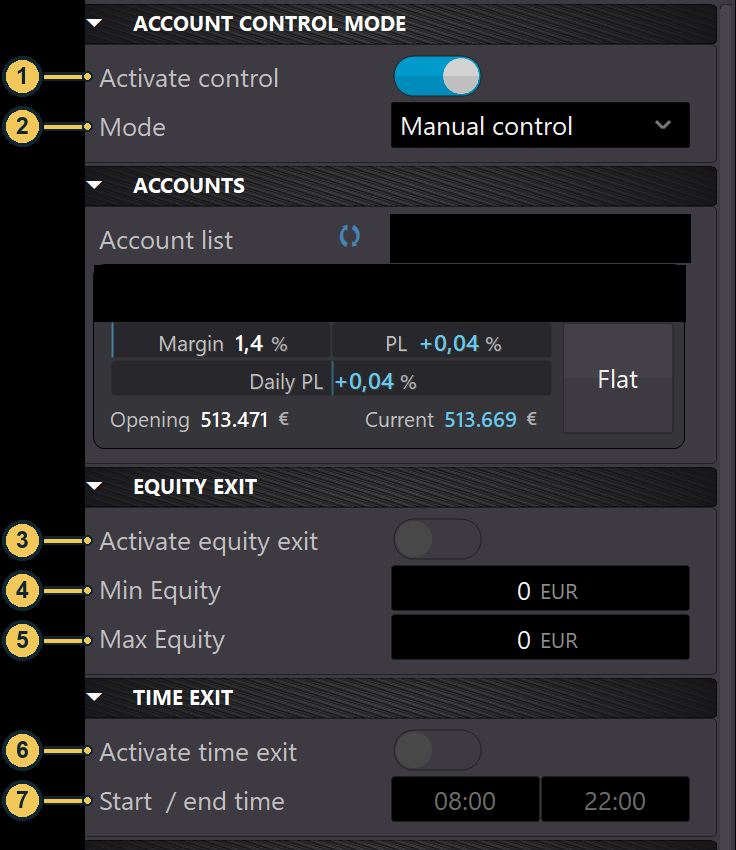
| No. | Label | Description |
|---|---|---|
| 1 | Activate control |
Turns Account Control for the selected account on or off. |
| 2 | Mode |
Selects Prop trading or Manual control; this view has Manual control selected. |
| 3 | Activate equity exit |
Turns EQUITY EXIT on or off. |
| 4 | Min Equity |
Lower equity limit; the account-wide action is triggered if equity falls below it. |
| 5 | Max Equity |
Upper equity limit; the account-wide action is triggered when equity reaches or exceeds it. |
| 6 | Activate time exit |
Turns the time-based account rule on or off. |
| 7 | Start / end time |
Sets the start and end of the time window. Its account-wide effect is explained below. |
Min Equity sets the lower equity limit. If the selected account's equity falls below it, StereoTrader closes all open positions for that account and deletes its Pending Orders. Max Equity sets the upper limit: when equity reaches or exceeds it, all open positions are also closed and all Pending Orders for the selected account are deleted. Account Control remains active after the rule triggers.
This differs from AUTO EXIT in Chapter 12: there, account equity values can be used as a measurement, but the closing action remains limited to the current chart. EQUITY EXIT under ACCOUNT is part of account control for the selected account.
TIME EXIT for the account#
TIME EXIT is a time-based Account Control rule for the selected account. It is available in both Prop trading and Manual control modes.
Activate time exitturns the time rule on or off.Start / end timesets the start and end of the time window.- Outside the time window, no new Market Orders or Pending Orders are allowed for the selected account.
- At the end of the time window, all open positions for the selected account are closed.
The ACCOUNT TIME EXIT is different from the chart-specific TIME WINDOW rule under AUTO EXIT in Chapter 12. The rule in Chapter 12 closes or manages orders in the current chart pool; TIME EXIT under ACCOUNT applies to the entire account.
Settings with different scopes#
Before changing a setting, check which level it affects:
GLOBALsets general defaults;Current Settingsin Chapter 13 can override them for a chart.BROKERapplies to broker and server values for the selected account.ACCOUNTdisplays and controls the selected account.Flathere is not the chart-specificFlatdescribed in Chapter 05.- Account Control is different from the
Trade Controltrading lock described in Chapter 15. Virtual SL/TPis managed locally and is not the same as normal SL/TP orders placed with the broker.
For other chart- and symbol-specific overrides, see Chapter 13; the account-wide trading lock is described in Chapter 15.