


 USER GUIDE · EN
What Auto Exit does#
Auto Exit lets you specify the conditions under which StereoTrader should close positions on the current chart. Triggers can include a specified loss or profit, an Equity limit (account balance plus the running result of open positions), or the end of a time window. A Pending Order is an order that has not yet been executed and is waiting on the chart at a specified price.
The exit action affects only the current chart: StereoTrader closes its open positions and deletes the associated Pending Orders. Positions on other charts are unaffected. However, Equity rules use the Equity of the entire account as their measurement. Account activity can therefore trigger the limit even though Auto Exit closes or deletes only the positions and Pending Orders on the current chart.
Auto Exit supplements the regular Stop Loss and Take Profit levels (SL and TP) and trailing described in Chapter 06. Those levels set price values for a position. Auto Exit, by contrast, responds to the result of positions on the current chart, an account Equity limit, or the configured time. The account rules in Chapter 14 apply to the selected account. Close all & lock in Chapter 15 closes positions and Pending Orders account-wide and then blocks new trades. Auto Exit performs its close action only on the current chart.
Find Auto Exit on the chart#
In the chart's trading panel, open the AUTO EXIT area. The overview shows the TRADE P/L (Profit/Loss), EQUITY, and TIME WINDOW groups, as well as the separate Delete orders when flat option.
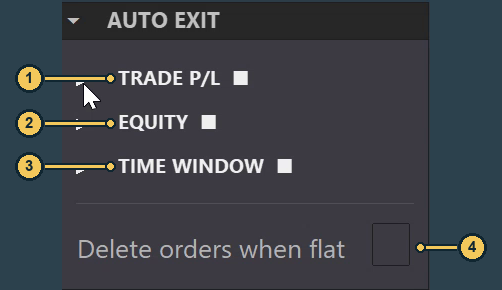
| No. | Label | Description |
|---|---|---|
| 1 | TRADE P/L |
Contains separate rules for the percentage loss and profit of the trade on the current chart. |
| 2 | EQUITY |
Contains account Equity limits that trigger an Auto Exit action on the current chart. |
| 3 | TIME WINDOW |
Determines when the current chart may accept new orders and when positions and Pending Orders are closed or deleted. |
| 4 | Delete orders when flat |
Controls additional deletion of remaining Pending Orders when no position is open on the current chart. |
The three rule groups are collapsed in the image. Open a group to see its fields. The legend names the elements visible in this overview. Additional hedge limits may appear depending on the trading model and available features; they are not shown here. The small marker at the right edge of a collapsed group indicates that one of its checkbox settings differs from its default. It is not a switch and does not reliably show which individual rule is active.
Enable rules#
The arrows next to TRADE P/L, EQUITY, and TIME WINDOW expand or collapse each group; they do not enable a rule. The current values in the expanded TRADE P/L and EQUITY headings are displays only.
Enable rules using the switches beside the limits. Loss and Profit, as well as Min and Max, can each be turned on or off independently. If the POOL P/L group is shown for the trading model and available features in use, SL total and TP total also have separate switches. Several of these rules can be active at the same time.
Begin and End together form the time window. Their switches are linked: toggling either one also toggles the other. The times themselves can be set separately.
TRADE P/L: loss and profit limits#
TRADE P/L displays a percentage representing the running result of open positions and the realized profit or loss of positions on this chart. StereoTrader starts calculating Trade P/L when the first position is opened on the current chart. It uses the account balance at that time as the reference for the percentage. When the group is expanded, the current value appears in the heading; it is a display, not a limit.
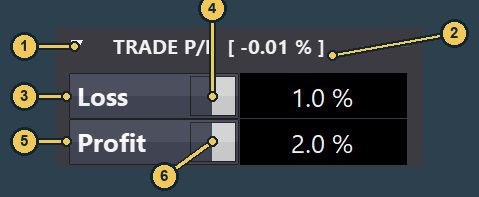
| No. | Label | Description |
|---|---|---|
| 1 | TRADE P/L |
The arrow expands or collapses the group. The heading itself does not enable a rule. |
| 2 | [ -0.01 % ] |
Shows the current Trade P/L of the chart pool. This is a display, not a trigger value. |
| 3 | Loss |
Input field for the loss limit in percent. A positive input value corresponds to the negative loss threshold. |
| 4 | Switch beside Loss |
Enables or disables the loss rule independently of Profit. |
| 5 | Profit |
Input field for the positive profit limit in percent. |
| 6 | Switch beside Profit |
Enables or disables the profit rule independently of Loss. |
The example values in the image are not recommendations.
Loss sets the loss limit. Enter a positive percentage; when Trade P/L reaches the corresponding negative percentage, the active rule triggers a close. Profit sets the positive percentage that triggers the profit rule. Each value has its own switch. When triggered, StereoTrader closes the open positions on the current chart and deletes their associated Pending Orders.
Example: Suppose the account balance when the first position is opened on the chart is 10,000 units of the account currency and Loss is set to 1%. The loss limit is then -100 units. When Trade P/L reaches -1%, Auto Exit closes the positions on this chart and deletes its Pending Orders. This number is only to explain the percentage calculation.
Additional limits in the hedge model#
If supported by the current trading model and available features, the POOL P/L group also appears. There, you can set separate SL total and TP total limits for the total position result on the current chart. When triggered, StereoTrader closes the open positions on this chart and deletes the associated Pending Orders. SL total triggers a close when the configured loss value in points is reached; TP total triggers at the configured profit value. Each value has its own switch. Enter a positive limit for each. When triggered, StereoTrader closes the open positions on this chart and deletes the associated Pending Orders.
The Hedge only option may also appear in the Stereo Hedge model. When enabled, Loss and Profit trigger only while both Long and Short positions are open on the current chart. This option does not change how SL total and TP total work.
EQUITY: lower and upper limits#
EQUITY shows the current account Equity: the account balance plus the running result of open positions. When the group is expanded, this current value appears in the heading as a display. The limits are called Min and Max in the current interface. Min is the lower absolute Equity limit in the account currency; it triggers when reached or crossed below. Max is the upper absolute Equity limit; it triggers when reached or crossed above. Each has its own switch and can be enabled independently.

| No. | Label | Description |
|---|---|---|
| 1 | EQUITY |
The arrow expands or collapses the group. The heading itself does not enable a limit. |
| 2 | [ 49,994 ] |
Shows the current account Equity as an amount; this is a display, not a limit. |
| 3 | Min |
Input field for the lower absolute Equity limit in the account currency. |
| 4 | Switch beside Min |
Enables or disables the lower limit independently of Max. |
| 5 | Max |
Input field for the upper absolute Equity limit in the account currency. |
| 6 | Switch beside Max |
Enables or disables the upper limit independently of Min. |
The values in the image are examples only.
Even though the measurement uses the Equity of the entire account, Auto Exit closes only the positions and Pending Orders on the current chart when a limit is reached. The account-wide Equity Exit rule in Chapter 14, by contrast, applies to the selected account.
After it triggers, Auto Exit turns off the relevant Equity limit and the StereoTrader main Auto trading switch on the affected chart. This switch is StereoTrader's permission for automated trading by the SEAs listed in the AUTOTRADING panel. MetaTrader's global Algo Trading switch is unaffected. To explicitly terminate an SEA, use X in its row; this terminates the SEA and removes its row (see Chapter 11).
Close by filter operates independently of StereoTrader's main Auto trading switch. When enabled, a filter can close open positions in a direction and delete same-direction waiting orders when it blocks that direction.
The switches for Stay, Cluster, SL (Stop Loss), TP (Take Profit), Trail (Trailing), BE (Break Even), and Follow on the current chart are also reset. The automatic BE save feature moves the Stop Loss to the entry price plus BE save add after the configured profit distance is reached. Follow makes a Pending Order that has not yet been executed track the market at the configured distance. For details about BE and Follow, see Chapters 06 and 07; Stay and Cluster are explained in Chapter 09.
TIME WINDOW: start and end#
Use Begin and End to determine when the current chart may accept new orders. The chart accepts new orders within the time window. Before Begin and from End onward, it accepts no new orders; while the time window is active, the time rule closes open positions on the current chart and deletes its Pending Orders outside the window.
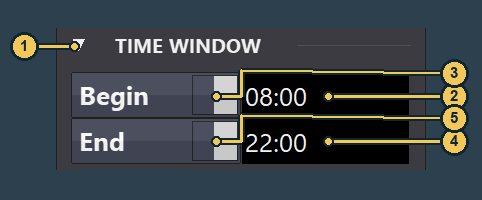
| No. | Label | Description |
|---|---|---|
| 1 | TIME WINDOW |
The arrow expands or collapses the group. The heading itself does not enable the time window. |
| 2 | Begin |
Time at which the window starts. The example image shows 08:00. |
| 3 | Switch beside Begin |
Turns the time window on or off. The switch beside End changes with it. |
| 4 | End |
Time at which the permitted window ends. The example image shows 22:00. |
| 5 | Switch beside End |
The same linked on/off switch; it cannot be enabled independently of Begin. |
Begin is inclusive: from that minute onward, the time is within the window. End is exclusive: from that minute onward, it is outside. If you enable the time window during live operation while a position is open and the current time is outside the window, a warning appears and StereoTrader turns both time-window switches off again. This activation does not close the position immediately. If only Pending Orders are open, the warning does not appear; the active time rule deletes the orders at the next time-window check.
The times are evaluated using the time conversion configured in StereoTrader. Do not assume they match your computer's local clock. Chapter 14 provides information about the server time zone.
Example: Set Begin to 09:00 and End to 17:00. Before 09:00, the chart accepts no new orders; the active time rule closes existing chart positions and deletes Pending Orders. At 09:00, the permitted window begins. From 17:00 onward, the time is outside the window again; the time rule closes existing positions and deletes Pending Orders.
What Delete orders when flat means#
Here, flat means there is no open position on the current chart. Pending Orders may still exist.
When Delete orders when flat is enabled, StereoTrader also deletes any such remaining Pending Orders when no position is open on the current chart. When the option is off, these orders remain during this general transition to flat.
The checkbox does not determine whether orders are deleted when an Auto Exit rule itself closes the current chart. Loss, Profit, SL total, TP total, Min, Max, and the time rule close positions and delete the associated Pending Orders regardless of Delete orders when flat.
Configure Auto Exit#
- In the trading panel of the desired chart, open
AUTO EXITand expand the groups you need. - First check whether there are open positions or Pending Orders on the current chart. An enabled rule can close positions and delete Pending Orders.
- Enter the desired values. Enter a positive percentage for
Loss;Profitis also a percentage limit.MinandMaxare absolute Equity values in the account currency. - Under
TIME WINDOW, set theBeginandEndtimes. Their switches are linked. If you enable the time window during live operation outside its permitted time while a position is open, a warning appears and both switches are turned off again. This warning does not apply when only Pending Orders are open. - Then enable the desired limits using their respective checkboxes. Make sure a checkbox is marked only for a limit you actually want active. Optional
SL totalandTP totalalso have separate checkboxes. - Enable
Delete orders when flatif StereoTrader should delete remaining Pending Orders when no position is open on the current chart. Turn it off if those orders should remain during this general transition to flat.
For Equity limits, also check that you have considered the desired account value and the chart-specific scope of the close action. See Chapter 05 for manual closing; regular SL, TP, and trailing features are described in Chapter 06.