


 USER GUIDE · EN
Instead of placing a single order of a fixed size at a specific price level, you can spread an entry across several smaller orders and combine them with suitable trailing stops. This can be useful, for example, when you want to enter at several price levels without placing each order manually.
Strategic Orders let you prepare several related individual orders. The orders are placed at different price levels; their sizes can stay the same or increase or decrease step by step. This group of related individual orders is called an order set below.
For an order set without an additional initial order, the size set in the order panel is the basis for distributing volume among the planned individual orders.
Example: You set a total size of 1 contract. For this example, Initial order = None, so no additional initial order is used. The order set contains 4 Limit Orders and 1 Stop Order, five orders in total. With equal-sized orders (Prg limits = 1.0, Prg stops = 1.0) and unchanged size factors (Size long x = 1.0, Size short x = 1.0), the calculation assigns approximately 0.2 contracts to each individual order. This does not create five orders of one contract each. Rounding to the tradable size can slightly change the total.
Limit and Stop Orders are orders that wait at a specified price level for execution. Chapter 07 explains the differences between these order types.
Control area and example#
You will find this feature in the chart control area STRATEGIC ORDER. There, you can select a preset or adjust the detail fields for an order set. A preset is a prepared combination of settings.
The image shows an order set after starting a preset. The resulting individual orders are displayed directly on the chart. The markers help you find your way around the control area; the following sections explain the settings in context.
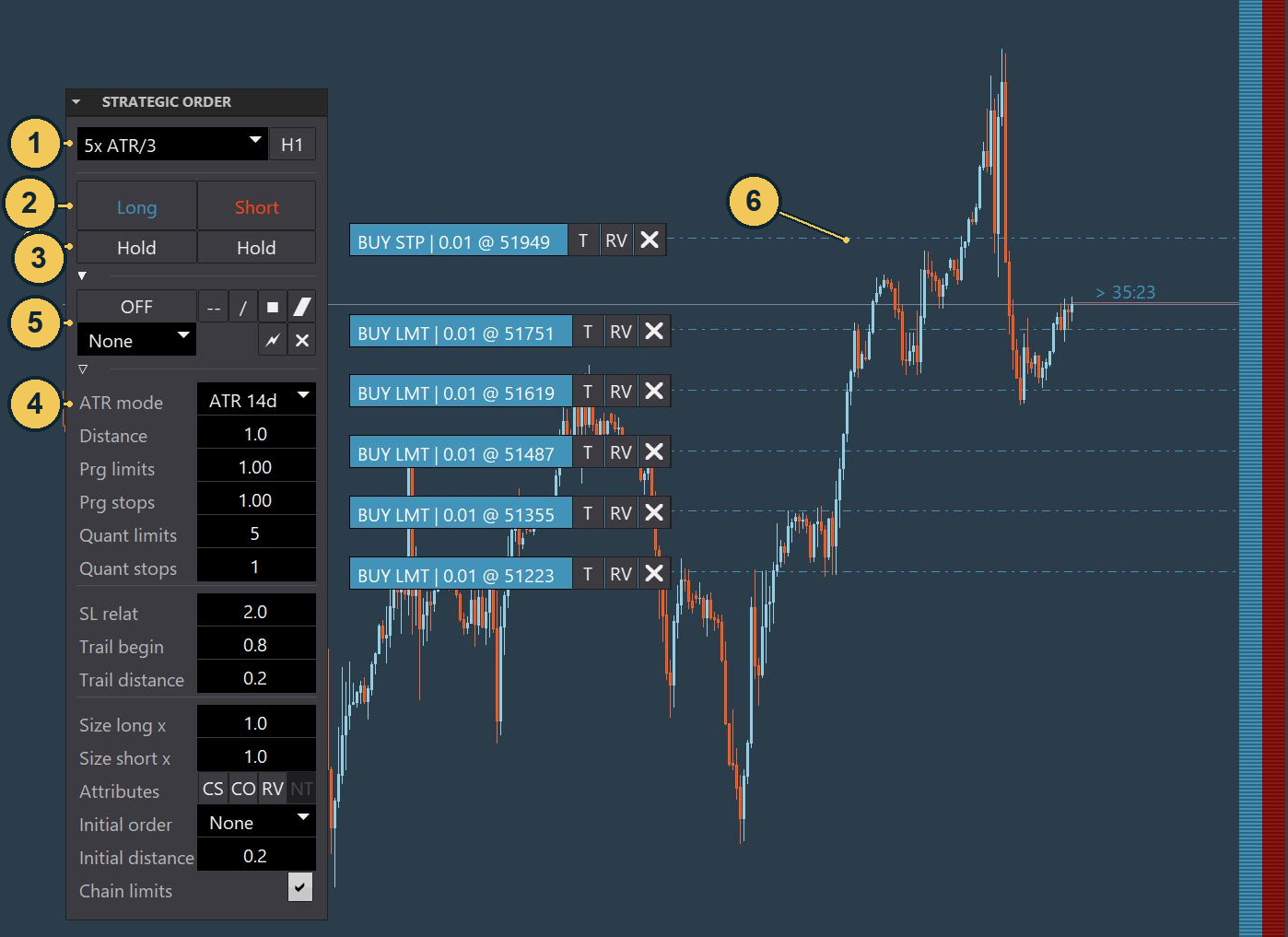
| No. | Label | Description |
|---|---|---|
| 1 | Preset selection | Select the prepared combination of settings for the order set here. |
| 2 | Long / Short |
Use these buttons to start an order set in the desired trading direction. |
| 3 | Hold |
These two switches control repetition of an order set in the respective direction. |
| 4 | Detailed settings | This area contains the values for building and managing the order set. |
| 5 | Cluster Trading | The controls for chart-based shapes and their actions are located here. |
| 6 | Orders on the chart | You can see the individual orders from the started order set here. |
Work with a preset#
The preset selector is at the top of STRATEGIC ORDER, above Long and Short. A preset provides a prepared starting configuration for an order set. You can then adjust its detail values to suit your trading plan.
A preset does not determine the trading direction. You choose that when you start the set with Long or Short. Before starting, check the values relevant to your order in the order panel and in STRATEGIC ORDER.
In the current example, 5x ATR/3 is selected. ATR stands for Average True Range. The visible fields show ATR mode = ATR 14d, Distance = 1.0, Prg limits = 1.00, Prg stops = 1.00, Quant limits = 5, Quant stops = 1, SL relat = 2.0, Trail begin = 0.8, Trail distance = 0.2, Size long x = 1.0, Size short x = 1.0, Initial order = None, and Initial distance = 0.2; Chain limits is enabled. These are the values shown in the image. The preset name alone does not establish different field values.
Next to the preset, the example shows H1. This control selects when the strategy is checked and executed: displaying the current chart period, such as H1, means it is checked when a new bar of that period forms. The second setting, Sec, checks once per second. This does not mean execution on every individual price tick.
Start Long or Short#
Clicking Long starts the order set on the buy side; its individual orders are Buy Orders. Short starts it on the sell side, and its individual orders are Sell Orders. In a hedging model, the Side start button may also be available; it starts buy and sell order sets together. The Side action with the same name in Cluster Trading has its own availability conditions, described below. In the current implementation, the first Limit Order on each side starts half an order distance from the starting price; subsequent Limit Orders follow at the full Distance interval.
These are start buttons. You do not first select a direction and then confirm it with another start button. Depending on the settings, clicking can open a position immediately or first place orders at the planned price levels. The Initial order setting, explained in the section on order behavior, also determines this.
To start a one-time order set:
- Select the desired preset at the top of
STRATEGIC ORDER. - Check the total size and the configured Stop Loss and Take Profit in the order panel.
- Check or change the number of orders, their distances, and their size distribution in the detail fields. The following sections explain these values.
- Leave the
Holdswitch for the desired direction off if the order set should not repeat automatically. - Click
LongorShortto start the order set in that direction. - Compare the direction, individual sizes, and price levels in the chart's order rows with your settings. Check in the Trade area whether a position is already open or waiting orders have been placed first.
Clicking the other direction is not a change to a provisional selection: it can start another order set as well. Edit or remove individual waiting orders in their order rows, as described in Chapter 07.
Repeat order sets with Hold#
Hold is a repeat option for each direction: the left switch belongs to Long, and the right switch belongs to Short. When Hold is enabled, StereoTrader can create another order set in the same direction once that side has no open positions or same-direction Pending Orders and the other strategy conditions are met. The original trigger line does not necessarily have to be crossed again. Turn Hold off to prevent further repetitions; this does not close an already open position.
Enable Hold only if additional order sets are part of your trading plan. For a single order set, leave the switch off. Turning Hold on or off does not close an open position; manage existing positions and orders with their designated controls.
Important: An enabled repeat option can trigger additional order sets. Take this possibility into account when checking order size and open orders.
Detailed settings#
The detail fields determine how the order set is built and protected. Distances determine the price levels; the number and size values determine how the planned orders are distributed. Stop Loss and Trailing define the protection.
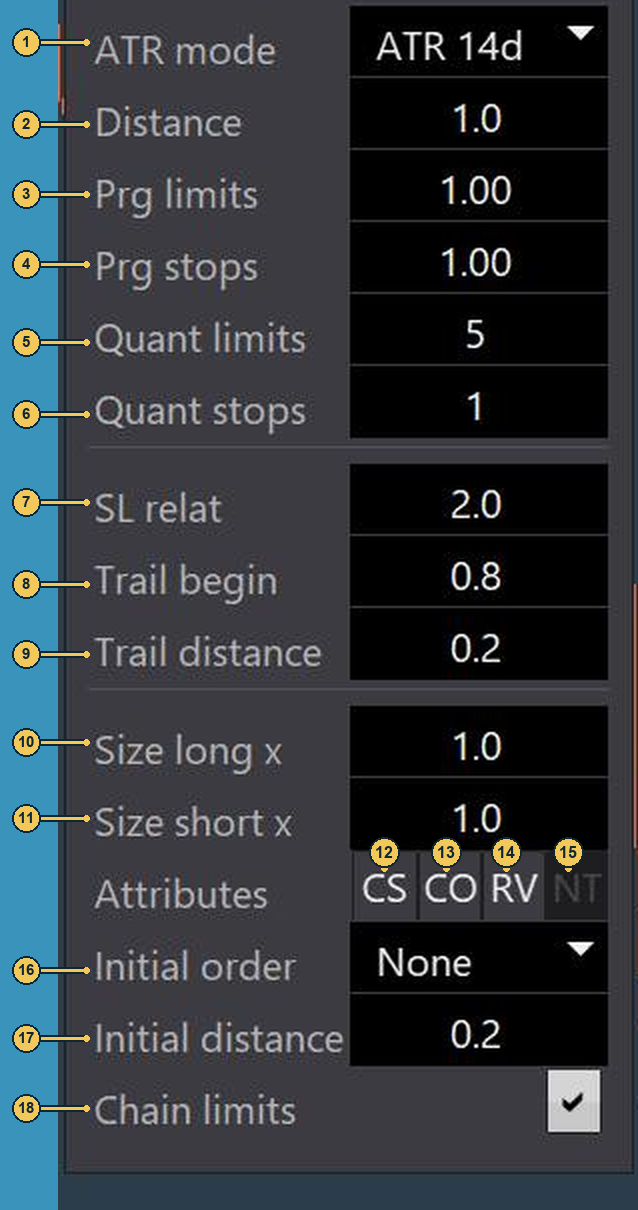
| No. | Label | Description |
|---|---|---|
| 1 | ATR mode |
Selects the ATR calculation or None; this determines the basis used to calculate distances. |
| 2 | Distance |
Sets the distance between individual order price levels. |
| 3 | Prg limits |
Sets the size factor for successive Limit Orders. |
| 4 | Prg stops |
Sets the size factor for successive Stop Orders. |
| 5 | Quant limits |
Sets the number of Limit Orders. |
| 6 | Quant stops |
Sets the number of Stop Orders. |
| 7 | SL relat |
Sets the additional Stop Loss distance beyond the Limit Order series. |
| 8 | Trail begin |
The positive value is multiplied by the ATR in ticks. A negative value would be a fixed tick distance; the current detail dialog accepts only values of 0 or higher. |
| 9 | Trail distance |
The positive value is multiplied by the ATR in ticks. A negative value would be a fixed tick distance; the current detail dialog accepts only values of 0 or higher. |
| 10 | Size long x |
Multiplies the calculated order size for Long Orders. |
| 11 | Size short x |
Multiplies the calculated order size for Short Orders. |
| 12 | CS |
Cancel Sibling: deletes waiting orders in the same order set after an order is executed. |
| 13 | CO |
Cancel Opposite Orders: deletes waiting orders in the opposite direction. |
| 14 | RV |
Reverse Positioning: closes an existing opposite position before opening in the new direction. |
| 15 | NT |
Netting: first offsets opposite orders against an existing opposite position; the effect depends on the trading model. |
| 16 | Initial order |
Determines whether and with which order type the order set starts. |
| 17 | Initial distance |
Sets the distance for the selected initial order. |
| 18 | Chain limits |
Enables linking of Limit Orders; MiT Orders are required for this feature. |
Distances between orders#
Distance sets how far apart the individual order price levels are. A smaller distance spreads entries across a narrower price range. A larger distance spreads them across a correspondingly wider range.
The distance can be fixed or based on ATR. ATR measures the instrument's average trading range and describes how far its price has moved during the periods being considered.
Select the calculation with ATR mode: None or a period of ATR 10, ATR 14, ATR 20, or ATR 30. There are also ATR 10d, ATR 14d, ATR 20d, and ATR 30d variants. When using ATR, Distance is a factor of this trading range. A value of 1.0 equals one ATR; 0.5 equals half an ATR. For example, if the calculated ATR is 40 price units, Distance = 0.5 gives a distance of 20 price units. Without ATR, Distance is the direct distance.
For ATR selections with a d after the period number, rising and falling bars are considered separately in the calculation. This variant distinguishes the trading ranges of the two bar directions instead of evaluating them together.
Number of orders#
Use Quant limits to set the number of Limit Orders and Quant stops to set the number of Stop Orders. The two order types can be configured separately.
In the introductory example, four Limit Orders and one Stop Order correspond to Quant limits = 4 and Quant stops = 1. Set an additional initial order separately with Initial order, and account for it when planning the order structure.
The number of orders does not mean that each individual order receives the entire size shown in the order panel. For an order set without an additional initial order, that size is distributed among the individual orders; the following sections explain which factors affect the distribution.
Size distribution and progression#
Progression is the step-by-step change in size from one order to the next. Prg limits sets the factor for Limit Orders; Prg stops sets it separately for Stop Orders. A factor above 1.0 increases the size of subsequent orders; a value below 1.0 decreases it. At 1.0, orders of that type stay the same size.
Example: An order set contains three Limit Orders, with no Stop Order or additional initial order (Initial order = None). For a total size of 0.7 contracts, Prg limits = 2.0, and Size long x = 1.0 and Size short x = 1.0, the calculated individual sizes can be 0.1, 0.2, and 0.4 contracts. Each order is twice the size of the previous one. Rounding can slightly change the actual individual sizes.
The same factor logic applies separately to Stop Orders through Prg stops. At Prg stops = 0.5, each subsequent Stop Order is half the size of the previous one; at Prg stops = 1.5, it is one and a half times as large. This Stop Order series does not change Limit Order progression.
Progression changes the size distribution within the order set. It does not add extra volume to every order.
Stop Loss and Trailing#
The SL relat, Trail begin, and Trail distance fields define different parts of the protection. SL relat is based on the spacing of the order series. Trail begin and Trail distance are calculated independently: StereoTrader calculates the ATR in ticks and multiplies it by each positive field value. Distance is not part of this calculation.
Use SL relat to set the additional Stop Loss distance beyond the Limit Order series. 1.0 means one additional series interval; 2.0 means two. Therefore, with Distance = 20 price units and SL relat = 2.0, the Stop Loss is two series intervals beyond the outer end of the Limits. The number of Limits and any initial order also affect where the series begins.
Trailing moves the Stop Loss along with the price. Trail begin sets the distance at which Break Even protection and trailing begin. Break Even is the price level at which the position is neither profitable nor losing before costs. Trail distance determines how far the trailed Stop Loss stays behind the price.
StereoTrader multiplies each positive value by the selected ATR after converting it to ticks. If this ATR is 100 ticks, Trail begin = 0.8 gives a distance of 80 ticks, while Trail distance = 0.2 gives a distance of 20 ticks. If the selected ATR calculation returns no value, 1 tick is used as the ATR basis. At a value of 0, the respective Trail value is not applied. The calculation treats a negative value as a fixed tick distance and uses its absolute value rather than multiplying it by the ATR. However, the current detail dialog accepts only values of 0 or higher. Distance does not change this Trail calculation.
Check the protection again if you change ATR mode, the number of Limits, or Distance. For more on managing trades, see Chapter 06.
Order behavior and initial order#
The lower area also contains the direction-specific size factors and the switches under Attributes.
Size long x and Size short x change the calculated order size for the respective direction. At 1.0, it remains unchanged; at 2.0, it doubles; at 0.5, it is halved. Include these factors in your volume checks.
When an order with CS is executed, the associated waiting orders in the same set are deleted. CO deletes waiting orders in the opposite direction. RV closes an existing opposite position before opening in the new direction.
With NT, an order in the opposite direction is first offset against an existing position. Only any excess can open a new position in the other direction. Its effect and availability depend on the selected trading model; Chapter 03 and Chapter 07 explain these relationships.
The Initial order setting applies to the start of the order set. With None, no additional initial order is sent. With Market, a buy or sell order is executed immediately at the next available price when the set starts. The order set can therefore have an open position from the outset while its other individual orders are still waiting for execution.
Another initial order option is MTO, a Market Trail Order. It uses a moving trigger price instead of entering immediately at the current price; Chapter 04 explains the basic procedure. EOP is an initial order whose tracking is based on the end of the previous period or bar. Initial distance sets the distance for these two initial order variants. When ATR mode is active, this value is an ATR factor; without ATR mode, it is a direct distance. The image shows Initial order = None, so the displayed value 0.2 is not used for an additional initial order in that example.
Chain limits links the Limit Orders in the order set. After an execution with positive pullback or slippage, subsequent Limit Orders can be tracked; at most one Limit Order is filled at a time. This feature requires Market if Touched Orders (MiT). MiT orders are monitored locally and trigger a Market Order when the specified price level is reached. For more on the basics, see Chapter 07.
Cluster Trading: Link orders to chart areas#
With Strategic Orders, you start a prepared order set using Long or Short. Cluster Trading links a line or chart area to an Action. When Cluster Trading is enabled and the associated price and time conditions are met, that action is processed.
This can be useful, for example, when you want to designate a price area for buy orders rather than mark only one entry price. You can assign another area for sell orders. The shapes define the reference in the chart; Strategic Orders determine how the associated order set is built.
Such a shape is called a Shape. Available shapes include horizontal and diagonal lines, rectangles, and channels. Rectangles and channels mark price areas; a line marks a price level or a path. The assigned Action determines which Cluster action is linked to the shape.
The Cluster controls are inside STRATEGIC ORDER, between the start buttons and the detail fields. They include the on/off switch, shape icons, the action selector, a lightning icon, and an X.
The image below shows two chart areas and a line, each with an assigned action. The presence of these shapes does not mean Cluster logic is enabled: in the image, the switch is set to OFF.
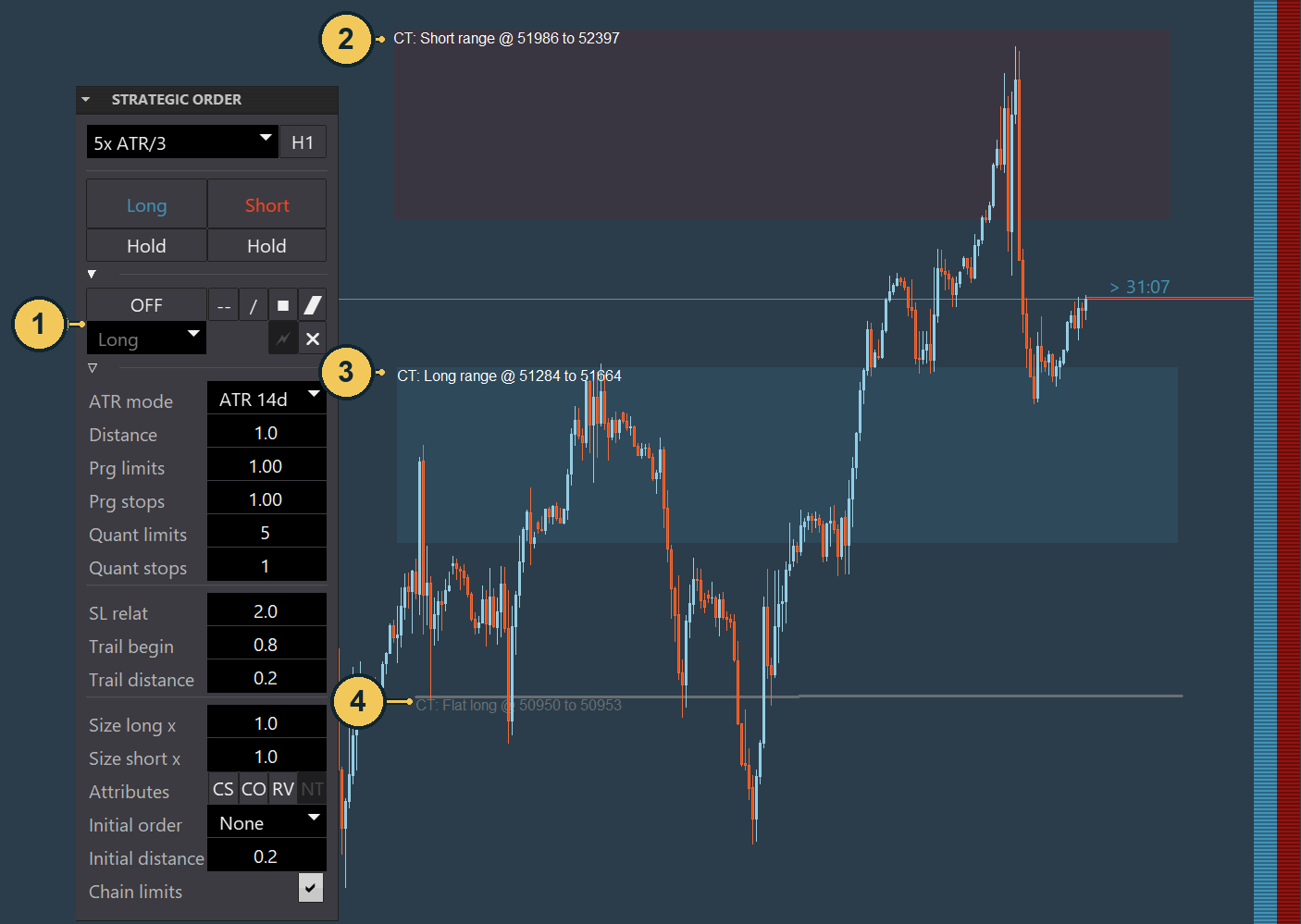
| No. | Label | Description |
|---|---|---|
| 1 | Cluster controls | Turn Cluster logic on or off and edit shapes and their action assignments here. |
| 2 | CT: Short range |
This chart area is designated for a Short action. |
| 3 | CT: Long range |
This chart area is designated for a Long action. |
| 4 | CT: Flat long |
This line has the assigned Cluster action Flat long. |
Assign an action to an existing shape#
The shape and action are two separate choices. Use the shape icons to create a horizontal line, diagonal line, rectangle, or channel. The following steps apply to a shape already on the chart, whose action you want to assign or change.
- Select the shape on the chart. The action selector applies to this selected shape.
- Choose an action in the selector below the shape icons. Available choices depend on whether you are editing an area or a line.
- Click the lightning icon to assign the action to the shape.
- Check the label on the shape in the chart. It identifies the assigned action and the displayed price area or level.
Use the on/off switch to enable or disable Cluster logic. At OFF, no Cluster action is triggered.
When does a Cluster shape trigger its action?#
Cluster logic checks a shape only when it is enabled and the current time falls within the time range that applies to the shape. For a rectangle or channel, the current price must also be within the marked price area. For a horizontal or diagonal line, the action is checked when the price crosses the line.
Areas for Long or Short Orders#
For rectangles and channels, you can assign Long or Short. Long means a buy order set; Short means a sell order set. Such a Grid is a series of orders at different price levels. In the Stereo Hedge product trading model, the action selector also offers Side, which requests buy and sell order sets together. None means no Long or Short action is assigned to the shape.
Example: You want to mark a price area for buy orders on the chart. Select an existing rectangle in the desired price area. Then choose the Long action for that rectangle and apply the assignment using the lightning icon. The shape will then show its Long assignment. The values in the Strategic Order set determine how its individual orders are built. The image shows such an assignment on the CT: Long range area.
Selecting an action for a shape does not start it in the same way as clicking the Long start button at the top of the panel: here, you first link an action to a chart area. Keep these two operations distinct.
Actions for lines#
For lines, Long and Short are available. When the price crosses the line and there are no open orders or positions on the corresponding side, StereoTrader starts a Long or Short order set. Its structure is determined by the settings in STRATEGIC ORDER.
Long hold and Short hold start the respective direction when triggered and enable its repetition at the same time. While Hold is active, StereoTrader can request another order set at a later check time if there is no open position or same-direction Pending Order on that trading side. The line does not necessarily have to be crossed again after the first trigger. The repeat request is checked again in later cycles; this does not necessarily mean an order is executed immediately. Use End Long-hold or End Short-hold to turn off the respective repetition.
The line action selector offers Side, Side hold, and End Side-hold only in the Stereo Hedge product trading model. Side requests buy and sell order sets together; Side hold enables repetition for both directions, and End Side-hold turns it off. Each direction is checked against its own open positions and waiting orders. Seeing an action in the selector does not mean an order will be accepted or executed immediately. These End actions only turn off repetition: existing open positions and waiting orders remain.
The line selector also includes actions to close positions or reset the pool. Flat closes all open positions, Flat long only open Long positions, and Flat short only open Short positions. These three actions do not delete waiting orders; manage them separately with the order controls described in Chapter 07.
Reset performs a pool reset: all open positions are closed, waiting orders are removed, and automatic order algorithms are stopped. Use this action only when you intend to make this comprehensive change. The actions take effect when the assigned line is crossed and the configured time range applies.
With None, no action is assigned to the line.
Remove shapes and existing orders#
If you no longer want to use a Cluster shape, select it and click X in the Cluster controls. This removes the shape and its action. Ctrl-clicking this X removes all Cluster shapes and their actions.
Removing a chart shape is separate from managing existing orders or positions. To remove specific waiting orders, use the order controls described in Chapter 07. Chapter 05 explains how to close an open position.