


 USER GUIDE · EN
What AutoTrading does#
A SEA is a Stereo Expert Advisor. It can send trading signals to StereoTrader and trigger automated trading actions. AutoTrading lets StereoTrader process trading actions from enabled SEAs automatically. Turning on AutoTrading alone does not create an order: the SEA must report a suitable action, and all required permissions must be in place.
Each SEA row in the panel represents a currently detected SEA. The visible text in the row—in the example, ReturnToOpen—is its display name. Other SEAs may have different names; the name itself does not explain the trading idea the SEA follows.
The first requirement is MetaTrader's global Algo Trading switch. It must be enabled to allow StereoTrader and other Expert Advisors to perform automated trading actions. If Algo Trading is disabled, turning on Auto trading in the StereoTrader panel is not enough.
In addition, Auto trading controls StereoTrader's global permission for automated trading by the SEAs listed in the AUTOTRADING panel. Enabling MetaTrader's Algo Trading alone therefore does not make an SEA trade automatically.
All of the following permissions must be in place for an SEA to trade automatically:
- MetaTrader's
Algo Tradingis enabled. - StereoTrader's
Auto tradingis enabled. Ais enabled in the row of the respective SEA.- The required direction,
Longand/orShort, is permitted. - No active filter blocks the relevant direction.
SEAs in the panel#
The SEA controls are in the AUTOTRADING panel on the current chart. When a supported SEA is assigned to the chart and detected, the panel displays its own row.
The A after an SEA entry is the individual AutoTrading permission for that SEA. By contrast, Auto trading is the global StereoTrader permission for all SEAs in the panel. Use A to turn individual SEAs on or off without disabling AutoTrading for all of them. The Long and Short permissions are separate.
For example, if A is enabled for SEA 1, it is permitted to trade when all other conditions are also met. If A is disabled for SEA 2, it remains in the panel but cannot execute automated trades. This lets you keep several SEAs in the panel while permitting only selected ones to trade automatically.
X actually terminates the respective SEA. Its SEA row then disappears from the panel.
How a SEA is installed or assigned can vary. This chapter explains how to check an already detected SEA in the panel; it does not provide a general installation procedure for all SEAs.
The controls#
The image below shows the main switches, direction indicators, and the row of a detected SEA. The numbers correspond to the table directly below it.
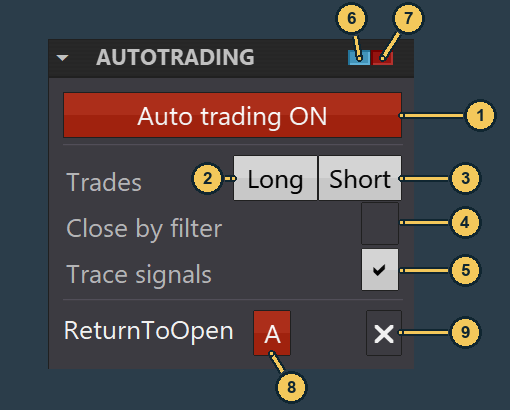
| No. | Label | Description |
|---|---|---|
| 1 | Auto trading |
Global StereoTrader permission for automated trading by SEAs in the panel. MetaTrader's Algo Trading, the respective A, and the relevant direction permissions are also required. The main switch itself does not close an existing position or delete a waiting order. |
| 2 | Long |
Permits or blocks normal Long or buy actions from signal processing. Toggling it does not close or delete an existing position or order. |
| 3 | Short |
Permits or blocks normal Short or sell actions from signal processing. Toggling it does not close or delete an existing position or order. |
| 4 | Close by filter |
When enabled, a filter that blocks a direction can close existing positions in that direction and delete same-direction waiting orders on the current chart. |
| 5 | Trace signals |
Displays information in the chart about incoming signals and whether they were accepted or processed. The messages help with monitoring and troubleshooting; they do not confirm complete execution by the broker. |
| 6 | Long status indicator |
Shows whether Auto trading and the Long permission are enabled. It does not show whether a filter permits a specific signal or an order has been executed. |
| 7 | Short status indicator |
Shows whether Auto trading and the Short permission are enabled. It does not show whether a filter permits a specific signal or an order has been executed. |
| 8 | A |
Individual AutoTrading permission for the SEA in this row. It does not change other SEAs or the global Auto trading permission. |
| 9 | X |
Terminates the respective SEA and then removes its row from the panel. |
The screenshot shows Auto trading and Trace signals enabled and Close by filter disabled. These are only the states shown in the image, not default settings.
Trace signals lets you follow incoming and accepted or processed signals through messages in the chart. These include feedback about command processing. The information helps you see how StereoTrader responds to a signal, but does not confirm that an order was fully executed by the broker.
Important:
Close by filteris a separate feature. When enabled, a filter can close positions in a direction and delete waiting orders in that direction when it blocks that direction. This filter action does not depend on the mainAuto tradingswitch. TurningAuto tradingoff therefore does not prevent it. CheckClose by filterseparately if positions and waiting orders must not be changed automatically.
Understand Long, Short, and filters#
Here, Long means the buy side and Short means the sell side. The Long and Short switches determine which directions signal processing generally permits. They do not directly change existing positions or orders. If both switches are off, neither direction is enabled for normal entry signals through these switches. This does not generally block other SEA actions or Close by filter; filters can also affect which directions are actually permitted.
A filter determines whether a trading direction is allowed under the specified conditions. It can affect incoming signals and also apply to Strategic Orders. A filter does not create an order set itself; it permits or blocks a direction. The direction permission is also checked when starting Strategic Orders and repeating them with Hold.
For example, an SEA reports a Long signal. If Long is permitted and no filter blocks the direction, StereoTrader can process the signal according to the SEA's settings. If a filter blocks Long, the Long side is blocked. If Close by filter is enabled, existing Long positions on this chart are also closed and waiting Long orders are deleted. This Long block does not automatically close the Short side.
Several SEAs can be enabled in separate rows at the same time. This does not establish a fixed order or linking rule for conflicting signals; that depends on the SEAs in use.
AutoTrading with Strategic Orders and Hold#
Strategic Orders determine how an order set is built. When the repeat conditions are met, Hold can create another order set if no positions or waiting orders from the previous set remain. The permission for Long or Short is checked both when starting and when repeating. A filter can block a direction and prevent another set from being created in that direction.
The roles work together as follows: the Strategic Order defines the order set, Hold enables repetition, the filter limits the permitted direction, and the trade settings determine protection and management. Details about Strategic Orders and Hold are in Chapter 09.
Procedure#
- Check that MetaTrader's global
Algo Tradingswitch is enabled. - Open the
AUTOTRADINGpanel on the current chart and check the displayed names to see which SEAs were detected. If the desired SEA is missing, consult its setup guide. - Enable each desired SEA with
Ain its own row. LeaveAoff for SEAs that should not execute automated trades. - Enable the required trading directions with
Longand/orShort. - Check the filters and
Close by filteras explained above in “Understand Long, Short, and filters.” Check the chart for existing positions and waiting orders: whenClose by filteris enabled, a filter block can close those positions and delete same-direction waiting orders—even ifAuto tradingis off. Chapters 05 and 07 explain how to manage positions and waiting orders. - Enable StereoTrader's
Auto tradingonce the SEA permissions, directions, filters, andClose by filterare set as desired. - If needed, turn on
Trace signalsfor monitoring and troubleshooting. Messages appear in the chart. - Monitor the resulting positions and orders in the chart, along with signal-processing messages. These messages do not prove complete execution by the broker.
Use X when you want to terminate the respective SEA. Its row is then removed from the panel. For developing your own SEAs and technical API information, see the separate developer documentation. Chart-specific automatic exit rules are covered in Chapter 12.